Internal storage pool
These bays form the internal RAID storage pool. They are not directly mounted on your computer through the USB4 connection.


From accidentally deleted photos to a separate backup, protection follows your material through the shoot.

Recover accidentally deleted photos from supported memory cards and USB drives. Recovery depends on the media and whether the deleted data has been overwritten.
SHA-1 / MD5 verification checks the transfer, with automatic retry when verification fails.
Read-back verification checks the written data to help detect silent errors.
Mirrored internal storage protects against a single-drive failure. RAID redundancy does not replace a separate backup.
Storage health monitoring, memory-card checks and completion signals help you keep track of your material.
Write to two storage locations in one backup workflow. Choose the destination combination that fits your setup.
Keep an additional copy on supported cloud services, S3, external drives or a NAS, with encryption before upload where supported.
Cards, cameras and external storage. Bring material into one backup workflow, with each task visible on the device.
On Pro, use CFexpress Type B, Type A with an adapter, SD and microSD, alongside supported USB sources.
The simultaneous card scenario includes CFexpress Type A via an adapter, SD and microSD. Speeds vary with the sources and tasks running together.
Compare copy methods & speeds ↓Offload a camera card, copy from external storage or connect to a workstation. The connection determines the available bandwidth.
Up to · campaign card-backup figure
Up to · campaign USB4 demonstration
| Connection | Interface rating | Copy performance / use |
|---|---|---|
| CFexpress Type B | PCIe 3.0 ×1 · 8 GT/s | Up to 800 MB/s card backup; Type A uses an adapter. |
| SD UHS-II | Up to 312 MB/s bus rate | Up to 240 MB/s quoted in the campaign backup overview. |
| microSD / TF UHS-II | Up to 312 MB/s bus rate | Actual copying depends on the card and task. |
| USB-A 3.2 Gen 1 | 5 Gbps | Connect external storage or compatible source devices. Pro only. |
| USB-C 3.2 Gen 1 (data) | 5 Gbps | Connect compatible storage and source devices. |
| USB4 (Bay 3) | 40 Gbps | Up to 3,200 MB/s shown in the campaign USB4 demonstration. Pro only. |
| Ethernet | 2.5 Gbps | Network file access on Pro; router, client and drives affect throughput. |
Interface ratings are theoretical link or bus limits, not guaranteed file-copy speeds. Campaign “up to” figures depend on the card, SSD, cable, file mix and setup. Wi-Fi performance varies with the network. The separate USB-C PD port is for power; HDMI ports carry video, not file backups.
Watch the 27GB backup comparison ↓Understand where the material lives before choosing a backup destination or connecting to your computer.
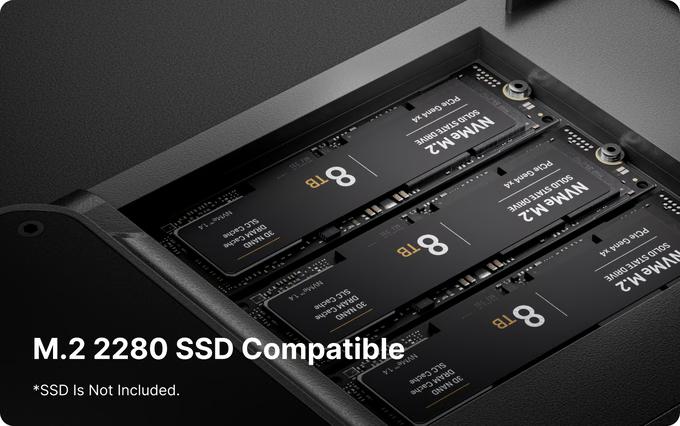
These bays form the internal RAID storage pool. They are not directly mounted on your computer through the USB4 connection.
A separate storage destination that your computer can access over USB4. Copy material here from the internal pool, or select it as a backup destination.
Pro: up to 24TB across three bays. Standard: up to 8TB across two bays. Installed capacity and usable RAID capacity differ. Diagram illustrates expansion, not numbered physical bay placement.
Start with the internal RAID pool, then choose another supported destination for the second copy.
Your mirrored storage pool in Bays 1 and 2.
Use a supported external SSD connected to the device, or the separate USB4 storage bay. The second destination is not limited to one external SSD model.
Select two available destinations for the task. RAID mirroring and a second backup destination serve different purposes; Bay 3 is a separate drive inside the same device, while an external SSD can be stored separately.
Choose direct drive access or browse the device’s shared files from your computer and mobile devices.
USB4 mounts Bay 3, not the internal RAID pool.

Connect PixelMob and your computer or phone to the same network, using Wi-Fi or Pro’s Ethernet connection.
Enable SMB sharing on PixelMob and note its network address. On Mac, use Finder → Go → Connect to Server and enter smb://DEVICE-IP. On Windows, enter \\DEVICE-IP in File Explorer. Sign in with the device’s account to browse shared folders.
Open the UnifyDrive app, connect to your PixelMob on the same network, and browse the available files.
These are different situations, with different ways to continue.
Use card recovery to look for deleted photos on supported memory cards or USB storage. Avoid writing new material to the source before attempting recovery.
Recovery depends on the media and whether the deleted data has been overwritten.
Pause an active backup and continue it when you are ready. If a transfer is interrupted or fails, check the task status and reconnect or resolve the affected source or destination before resuming.
Check the final task and verification results before clearing the source media.
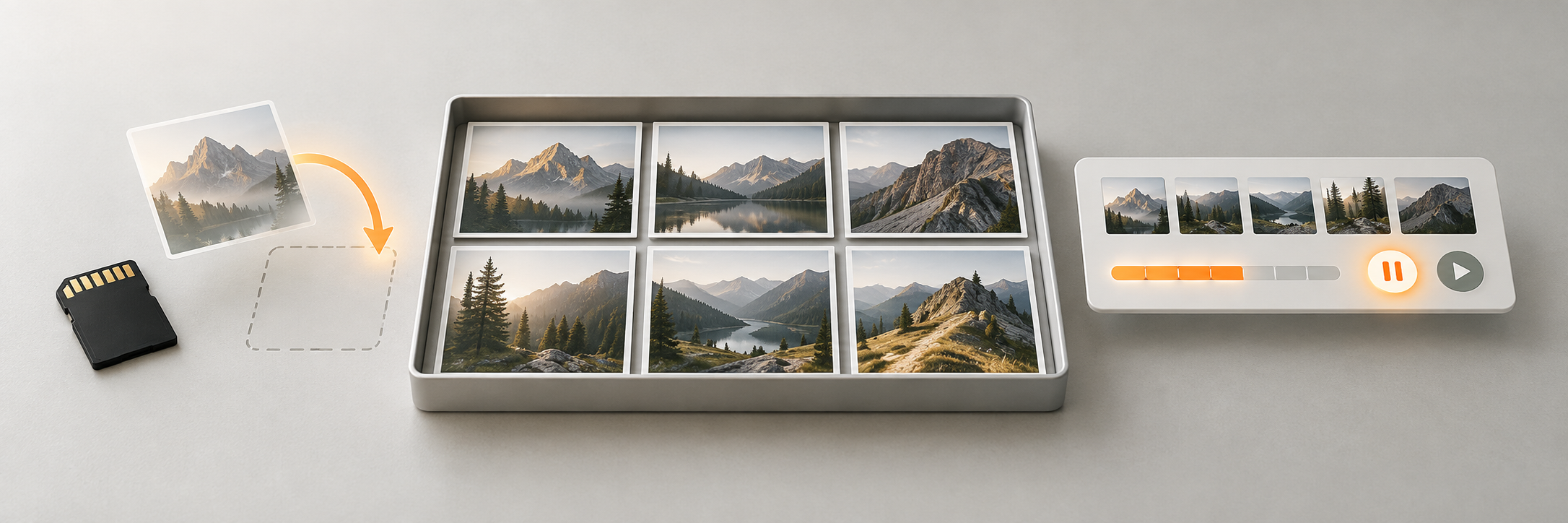
Watch backup and transfer comparisons, plus battery use during an active workload.
A side-by-side backup of 15GB of camera material, followed by opening files on the device.
A recorded comparison using the same 10GB material, including CFexpress, SD and USB transfer.
A recorded session combining screen-on use, backups and media browsing, with an on-screen timer.
PixelMob and MacBook Pro · Drone Wilder. Accelerated footage; the campaign reports 3:50 and 5:55 respectively.
Last updated: June 23, 2026
Thank you for choosing PixelMob products! To help you better understand our shipping services, delivery timelines, and global coverage, we have prepared this Shipping & Delivery Policy (hereinafter referred to as "this Policy").
We are committed to providing reliable, transparent, and efficient shipping services to customers worldwide. This Policy explains how orders are processed, shipped, delivered, and tracked. Please read this Policy carefully before placing an order. By placing an order on our website, you acknowledge that you have read, understood, and agreed to the terms described in this Policy. Any updates or changes to this Policy will be displayed on this page or communicated in advance when required.
If you supported PixelMob through our Kickstarter campaign, the following fulfillment process applies to your order.
Kickstarter requires a charge period of up to 7 days after a campaign closes to complete backer payment collection. Once this period ends and all backers are confirmed, we will begin processing orders. Following that, we will send a Survey to all confirmed backers to collect shipping address information — expected within 14 days of the campaign close date. All crowdfunding orders will then be shipped in a unified batch. The confirmed dispatch date will be announced via a campaign update and on our website.
Once your order has been dispatched, you will receive a confirmation email with your shipment details. Please note that real-time package tracking is not available through our website for crowdfunding orders — all status updates will be communicated via email.
Please refer to your situation below:
For standard (non-crowdfunding) orders, orders are typically processed within 1–2 business days after payment confirmation. Processing time may be extended during promotional periods, holidays, or due to inventory verification and security checks.
We offer global shipping to most countries and regions worldwide. Shipping availability for specific destinations will be displayed during checkout. Certain remote or restricted areas may have limited delivery options or extended delivery times.
After an order has been dispatched, the estimated delivery time is:
Delivery times may vary depending on the destination, local courier operations, weather conditions, or other unforeseen factors.
All orders are shipped using reliable international logistics partners. Once your order has been shipped, a tracking number will be provided via email or in your order details, allowing you to track your shipment status in real time.
Delivery delays may occur due to address inaccuracies, logistics disruptions, force majeure events, or other circumstances beyond our reasonable control. In such cases, we will make reasonable efforts to assist you in tracking and resolving the issue.
If you have any questions regarding shipping, delivery status, or logistics-related matters, please feel free to contact us at support@pixelmob.ai.
This website is operated by Pixelmob. Throughout the site, the terms "we", "us" and "our" refer to Pixelmob. Pixelmob offers this website, including all information, tools and services available from this site to you, the user, conditioned upon your acceptance of all terms, conditions, policies and notices stated here.
By visiting our site and/ or purchasing something from us, you engage in our "Service" and agree to be bound by the following terms and conditions ("Terms of Service", "Terms"), including those additional terms and conditions and policies referenced herein and/or available by hyperlink. These Terms of Service apply to all users of the site, including without limitation users who are browsers, vendors, customers, merchants, and/ or contributors of content.
Please read these Terms of Service carefully before accessing or using our website. By accessing or using any part of the site, you agree to be bound by these Terms of Service. If you do not agree to all the terms and conditions of this agreement, then you may not access the website or use any services. If these Terms of Service are considered an offer, acceptance is expressly limited to these Terms of Service.
Any new features or tools which are added to the current store shall also be subject to the Terms of Service. You can review the most current version of the Terms of Service at any time on this page. We reserve the right to update, change or replace any part of these Terms of Service by posting updates and/or changes to our website. It is your responsibility to check this page periodically for changes. Your continued use of or access to the website following the posting of any changes constitutes acceptance of those changes.
Our store is hosted on Shopify Inc. They provide us with the online e-commerce platform that allows us to sell our products and services to you.
By agreeing to these Terms of Service, you represent that you are at least the age of majority in your state or province of residence, or that you are the age of majority in your state or province of residence and you have given us your consent to allow any of your minor dependents to use this site.
You may not use our products for any illegal or unauthorized purpose nor may you, in the use of the Service, violate any laws in your jurisdiction (including but not limited to copyright laws).
You must not transmit any worms or viruses or any code of a destructive nature.
A breach or violation of any of the Terms will result in an immediate termination of your Services.
We reserve the right to refuse service to anyone for any reason at any time.
You understand that your content (not including credit card information), may be transferred unencrypted and involve (a) transmissions over various networks; and (b) changes to conform and adapt to technical requirements of connecting networks or devices. Credit card information is always encrypted during transfer over networks.
You agree not to reproduce, duplicate, copy, sell, resell or exploit any portion of the Service, use of the Service, or access to the Service or any contact on the website through which the service is provided, without express written permission by us.
The headings used in this agreement are included for convenience only and will not limit or otherwise affect these Terms.
At Pixelmob, we strive to provide our customers with high-quality NAS devices that meet their data storage and accessibility needs. However, we understand that there may be occasions when a refund is necessary. Our refund policy is designed to be straightforward and customer-friendly. Please review the following terms and conditions.
Returns are accepted for any reason (with exceptions listed below), but the handling of return shipping costs depends on the reason for the return:
Product will not be able to be acceptable to be returned or refunded due to:
*Please note, any items returned without authorization will not qualify for a refund and be rejected on delivery to our returns center.
Upon receipt, please inspect your purchase and notify us of any missing parts, faults, damage or incorrect items immediately. You are advised to contact our customer service within 48 hours of receiving your items if there is an issue with the product. Providing pictures of the product, the packaging and the labels on the outside will allow us to greatly speed up the process for you.
If the delivery attempt is unsuccessful for reasons such as refusal, invalid address, or lack of signature, resulting in reshipment or cancellation, you will be responsible for the additional handling and shipping fees that might occur.
For backers who have supported PixelMob through our Kickstarter campaign, the following refund terms apply:
*Please note that Kickstarter refund requests are handled on a case-by-case basis. Once an order has entered the fulfillment stage, standard return and refund terms as described above will apply.
We are not responsible if information made available on this site is not accurate, complete or current. The material on this site is provided for general information only and should not be relied upon or used as the sole basis for making decisions without consulting primary, more accurate, more complete or more timely sources of information. Any reliance on the material on this site is at your own risk.
This site may contain certain historical information. Historical information, necessarily, is not current and is provided for your reference only. We reserve the right to modify the contents of this site at any time, but we have no obligation to update any information on our site. You agree that it is your responsibility to monitor changes to our site.
Prices for our products are subject to change without notice.
We reserve the right at any time to modify or discontinue the Service (or any part or content thereof) without notice at any time.
We shall not be liable to you or to any third-party for any modification, price change, suspension or discontinuance of the Service.
Certain products or services may be available exclusively online through the website. These products or services may have limited quantities and are subject to return or exchange only according to our Return Policy.
We have made every effort to display as accurately as possible the colors and images of our products that appear at the store. We cannot guarantee that your computer monitor's display of any color will be accurate.
We reserve the right, but are not obligated, to limit the sales of our products or Services to any person, geographic region or jurisdiction. We may exercise this right on a case-by-case basis. We reserve the right to limit the quantities of any products or services that we offer. All descriptions of products or product pricing are subject to change at anytime without notice, at the sole discretion of us. We reserve the right to discontinue any product at any time. Any offer for any product or service made on this site is void where prohibited.
We do not warrant that the quality of any products, services, information, or other material purchased or obtained by you will meet your expectations, or that any errors in the Service will be corrected. We provide a 2-year warranty on the products that are purchased directly from us or from our authorized distributor. The 2-year warranty period will be calculated from the sales transaction date or the transaction date on the sales receipt from Pixelmob. For orders placed through Kickstarter, the 2-year warranty period will be calculated from the date the product is received by the backer, as confirmed by delivery records.
We reserve the right to refuse any order you place with us. We may, in our sole discretion, limit or cancel quantities purchased per person, per household or per order. These restrictions may include orders placed by or under the same customer account, the same credit card, and/or orders that use the same billing and/or shipping address. In the event that we make a change to or cancel an order, we may attempt to notify you by contacting the e‑mail and/or billing address/phone number provided at the time the order was made. We reserve the right to limit or prohibit orders that, in our sole judgment, appear to be placed by dealers, resellers or distributors.
You agree to provide current, complete and accurate purchase and account information for all purchases made at our store. You agree to promptly update your account and other information, including your email address and credit card numbers and expiration dates, so that we can complete your transactions and contact you as needed.
For more detail, please review our Returns Policy.
We may provide you with access to third-party tools over which we neither monitor nor have any control nor input.
You acknowledge and agree that we provide access to such tools "as is" and "as available" without any warranties, representations or conditions of any kind and without any endorsement. We shall have no liability whatsoever arising from or relating to your use of optional third-party tools.
Any use by you of optional tools offered through the site is entirely at your own risk and discretion and you should ensure that you are familiar with and approve of the terms on which tools are provided by the relevant third-party provider(s).
We may also, in the future, offer new services and/or features through the website (including, the release of new tools and resources). Such new features and/or services shall also be subject to these Terms of Service.
Certain content, products and services available via our Service may include materials from third-parties.
Third-party links on this site may direct you to third-party websites that are not affiliated with us. We are not responsible for examining or evaluating the content or accuracy and we do not warrant and will not have any liability or responsibility for any third-party materials or websites, or for any other materials, products, or services of third-parties.
We are not liable for any harm or damages related to the purchase or use of goods, services, resources, content, or any other transactions made in connection with any third-party websites. Please review carefully the third-party's policies and practices and make sure you understand them before you engage in any transaction. Complaints, claims, concerns, or questions regarding third-party products should be directed to the third-party.
If, at our request, you send certain specific submissions (for example contest entries) or without a request from us you send creative ideas, suggestions, proposals, plans, or other materials, whether online, by email, by postal mail, or otherwise (collectively, 'comments'), you agree that we may, at any time, without restriction, edit, copy, publish, distribute, translate and otherwise use in any medium any comments that you forward to us. We are and shall be under no obligation (1) to maintain any comments in confidence; (2) to pay compensation for any comments; or (3) to respond to any comments.
We may, but have no obligation to, monitor, edit or remove content that we determine in our sole discretion are unlawful, offensive, threatening, libelous, defamatory, pornographic, obscene or otherwise objectionable or violates any party's intellectual property or these Terms of Service.
You agree that your comments will not violate any right of any third-party, including copyright, trademark, privacy, personality or other personal or proprietary right. You further agree that your comments will not contain libelous or otherwise unlawful, abusive or obscene material, or contain any computer virus or other malware that could in any way affect the operation of the Service or any related website. You may not use a false e‑mail address, pretend to be someone other than yourself, or otherwise mislead us or third-parties as to the origin of any comments. You are solely responsible for any comments you make and their accuracy. We take no responsibility and assume no liability for any comments posted by you or any third-party.
Your submission of personal information through the store is governed by our Privacy Policy.
Occasionally there may be information on our site or in the Service that contains typographical errors, inaccuracies or omissions that may relate to product descriptions, pricing, promotions, offers, product shipping charges, transit times and availability. We reserve the right to correct any errors, inaccuracies or omissions, and to change or update information or cancel orders if any information in the Service or on any related website is inaccurate at any time without prior notice (including after you have submitted your order).
We undertake no obligation to update, amend or clarify information in the Service or on any related website, including without limitation, pricing information, except as required by law. No specified update or refresh date applied in the Service or on any related website, should be taken to indicate that all information in the Service or on any related website has been modified or updated.
In addition to other prohibitions as set forth in the Terms of Service, you are prohibited from using the site or its content: (a) for any unlawful purpose; (b) to solicit others to perform or participate in any unlawful acts; (c) to violate any international, federal, provincial or state regulations, rules, laws, or local ordinances; (d) to infringe upon or violate our intellectual property rights or the intellectual property rights of others; (e) to harass, abuse, insult, harm, defame, slander, disparage, intimidate, or discriminate based on gender, sexual orientation, religion, ethnicity, race, age, national origin, or disability; (f) to submit false or misleading information; (g) to upload or transmit viruses or any other type of malicious code that will or may be used in any way that will affect the functionality or operation of the Service or of any related website, other websites, or the Internet; (h) to collect or track the personal information of others; (i) to spam, phish, pharm, pretext, spider, crawl, or scrape; (j) for any obscene or immoral purpose; or (k) to interfere with or circumvent the security features of the Service or any related website, other websites, or the Internet. We reserve the right to terminate your use of the Service or any related website for violating any of the prohibited uses.
We do not guarantee, represent or warrant that your use of our service will be uninterrupted, timely, secure or error-free.
We do not warrant that the results that may be obtained from the use of the service will be accurate or reliable.
You agree that from time to time we may remove the service for indefinite periods of time or cancel the service at any time, without notice to you.
You expressly agree that your use of, or inability to use, the service is at your sole risk. The service and all products and services delivered to you through the service are (except as expressly stated by us) provided 'as is' and 'as available' for your use, without any representation, warranties or conditions of any kind, either express or implied, including all implied warranties or conditions of merchantability, merchantable quality, fitness for a particular purpose, durability, title, and non-infringement.
In no case shall Pixelmob, our directors, officers, employees, affiliates, agents, contractors, interns, suppliers, service providers or licensors be liable for any injury, loss, claim, or any direct, indirect, incidental, punitive, special, or consequential damages of any kind, including, without limitation lost profits, lost revenue, lost savings, loss of data, replacement costs, or any similar damages, whether based in contract, tort (including negligence), strict liability or otherwise, arising from your use of any of the service or any products procured using the service, or for any other claim related in any way to your use of the service or any product, including, but not limited to, any errors or omissions in any content, or any loss or damage of any kind incurred as a result of the use of the service or any content (or product) posted, transmitted, or otherwise made available via the service, even if advised of their possibility. Because some states or jurisdictions do not allow the exclusion or the limitation of liability for consequential or incidental damages, in such states or jurisdictions, our liability shall be limited to the maximum extent permitted by law.
You agree to indemnify, defend and hold harmless Pixelmob and our parent, subsidiaries, affiliates, partners, officers, directors, agents, contractors, licensors, service providers, subcontractors, suppliers, interns and employees, harmless from any claim or demand, including reasonable attorneys' fees, made by any third-party due to or arising out of your breach of these Terms of Service or the documents they incorporate by reference, or your violation of any law or the rights of a third-party.
In the event that any provision of these Terms of Service is determined to be unlawful, void or unenforceable, such provision shall nonetheless be enforceable to the fullest extent permitted by applicable law, and the unenforceable portion shall be deemed to be severed from these Terms of Service, such determination shall not affect the validity and enforceability of any other remaining provisions.
The obligations and liabilities of the parties incurred prior to the termination date shall survive the termination of this agreement for all purposes.
These Terms of Service are effective unless and until terminated by either you or us. You may terminate these Terms of Service at any time by notifying us that you no longer wish to use our Services, or when you cease using our site.
If in our sole judgment you fail, or we suspect that you have failed, to comply with any term or provision of these Terms of Service, we also may terminate this agreement at any time without notice and you will remain liable for all amounts due up to and including the date of termination; and/or accordingly may deny you access to our Services (or any part thereof).
The failure of us to exercise or enforce any right or provision of these Terms of Service shall not constitute a waiver of such right or provision.
These Terms of Service and any policies or operating rules posted by us on this site or in respect to The Service constitutes the entire agreement and understanding between you and us and govern your use of the Service, superseding any prior or contemporaneous agreements, communications and proposals, whether oral or written, between you and us (including, but not limited to, any prior versions of the Terms of Service).
Any ambiguities in the interpretation of these Terms of Service shall not be construed against the drafting party.
These Terms of Service and any separate agreements whereby we provide you Services shall be governed by and construed in accordance with the laws of United States.
You can review the most current version of the Terms of Service at any time at this page.
We reserve the right, at our sole discretion, to update, change or replace any part of these Terms of Service by posting updates and changes to our website. It is your responsibility to check our website periodically for changes. Your continued use of or access to our website or the Service following the posting of any changes to these Terms of Service constitutes acceptance of those changes.
Questions about the Terms of Service should be sent to us at support@pixelmob.ai.
Last updated: May 15, 2026
PixelMob operates this store and website, including all related information, content, features, tools, products and services, in order to provide you, the customer, with a curated shopping experience (the "Services"). PixelMob is powered by Shopify, which enables us to provide the Services to you. This Privacy Policy describes how we collect, use, and disclose your personal information when you visit, use, or make a purchase or other transaction using the Services or otherwise communicate with us. If there is a conflict between our Terms of Service and this Privacy Policy, this Privacy Policy controls with respect to the collection, processing, and disclosure of your personal information.
Please read this Privacy Policy carefully. By using and accessing any of the Services, you acknowledge that you have read this Privacy Policy and understand the collection, use, and disclosure of your information as described in this Privacy Policy.
When we use the term "personal information," we are referring to information that identifies or can reasonably be linked to you or another person. Personal information does not include information that is collected anonymously or that has been de-identified, so that it cannot identify or be reasonably linked to you. We may collect or process the following categories of personal information, including inferences drawn from this personal information, depending on how you interact with the Services, where you live, and as permitted or required by applicable law:
We may collect personal information from the following sources:
Depending on how you interact with us or which of the Services you use, we may use personal information for the following purposes:
In certain circumstances, we may disclose your personal information to third parties for legitimate purposes subject to this Privacy Policy. Such circumstances may include:
The Services are hosted by Shopify, which collects and processes personal information about your access to and use of the Services in order to provide and improve the Services for you. Information you submit to the Services will be transmitted to and shared with Shopify as well as third parties that may be located in countries other than where you reside, in order to provide and improve the Services for you. In addition, to help protect, grow, and improve our business, we use certain Shopify enhanced features that incorporate data and information obtained from your interactions with our Store, along with other merchants and with Shopify. To provide these enhanced features, Shopify may make use of personal information collected about your interactions with our store, along with other merchants, and with Shopify. In these circumstances, Shopify is responsible for the processing of your personal information, including for responding to your requests to exercise your rights over use of your personal information for these purposes. To learn more about how Shopify uses your personal information and any rights you may have, you can visit the Shopify Consumer Privacy Policy. Depending on where you live, you may exercise certain rights with respect to your personal information here Shopify Privacy Portal Link.
The Services may provide links to websites or other online platforms operated by third parties. If you follow links to sites not affiliated or controlled by us, you should review their privacy and security policies and other terms and conditions. We do not guarantee and are not responsible for the privacy or security of such sites, including the accuracy, completeness, or reliability of information found on these sites. Information you provide on public or semi-public venues, including information you share on third-party social networking platforms may also be viewable by other users of the Services and/or users of those third-party platforms without limitation as to its use by us or by a third party. Our inclusion of such links does not, by itself, imply any endorsement of the content on such platforms or of their owners or operators, except as disclosed on the Services.
The Services are not intended to be used by children, and we do not knowingly collect any personal information about children under the age of majority in your jurisdiction. If you are the parent or guardian of a child who has provided us with their personal information, you may contact us using the contact details set out below to request that it be deleted. As of the Effective Date of this Privacy Policy, we do not have actual knowledge that we "share" or "sell" (as those terms are defined in applicable law) personal information of individuals under 16 years of age.
Please be aware that no security measures are perfect or impenetrable, and we cannot guarantee "perfect security." In addition, any information you send to us may not be secure while in transit. We recommend that you do not use unsecure channels to communicate sensitive or confidential information to us.
How long we retain your personal information depends on different factors, such as whether we need the information to maintain your account, to provide you with Services, comply with legal obligations, resolve disputes or enforce other applicable contracts and policies.
Depending on where you live, you may have some or all of the rights listed below in relation to your personal information. However, these rights are not absolute, may apply only in certain circumstances and, in certain cases, we may decline your request as permitted by law.
You may exercise any of these rights where indicated on the Services or by contacting us using the contact details provided below. To learn more about how Shopify uses your personal information and any rights you may have, including rights related to data processed by Shopify, you can visit https://privacy.shopify.com/en.
We will not discriminate against you for exercising any of these rights. We may need to verify your identity before we can process your requests, as permitted or required under applicable law. In accordance with applicable laws, you may designate an authorized agent to make requests on your behalf to exercise your rights. Before accepting such a request from an agent, we will require that the agent provide proof you have authorized them to act on your behalf, and we may need you to verify your identity directly with us. We will respond to your request in a timely manner as required under applicable law.
If you have complaints about how we process your personal information, please contact us using the contact details provided below. Depending on where you live, you may have the right to appeal our decision by contacting us using the contact details set out below, or lodge your complaint with your local data protection authority.
Please note that we may transfer, store and process your personal information outside the country you live in.
If we transfer your personal information out of the European Economic Area or the United Kingdom, we will rely on recognized transfer mechanisms like the European Commission's Standard Contractual Clauses, or any equivalent contracts issued by the relevant competent authority of the UK, as relevant, unless the data transfer is to a country that has been determined to provide an adequate level of protection.
We may update this Privacy Policy from time to time, including to reflect changes to our practices or for other operational, legal, or regulatory reasons. We will post the revised Privacy Policy on this website, update the "Last updated" date and provide notice as required by applicable law.
Should you have any questions about our privacy practices or this Privacy Policy, or if you would like to exercise any of the rights available to you, please call or email us at support@pixelmob.ai or contact us at 3500 S Dupont Hwy, Dover, DE, 19901, US
This website is operated by Pixelmob. Throughout the site, the terms "we", "us" and "our" refer to Pixelmob. Pixelmob offers this website, including all information, tools and services available from this site to you, the user, conditioned upon your acceptance of all terms, conditions, policies and notices stated here.
By visiting our site and/ or purchasing something from us, you engage in our "Service" and agree to be bound by the following terms and conditions ("Terms of Service", "Terms"), including those additional terms and conditions and policies referenced herein and/or available by hyperlink. These Terms of Service apply to all users of the site, including without limitation users who are browsers, vendors, customers, merchants, and/ or contributors of content.
Please read these Terms of Service carefully before accessing or using our website. By accessing or using any part of the site, you agree to be bound by these Terms of Service. If you do not agree to all the terms and conditions of this agreement, then you may not access the website or use any services. If these Terms of Service are considered an offer, acceptance is expressly limited to these Terms of Service.
Any new features or tools which are added to the current store shall also be subject to the Terms of Service. You can review the most current version of the Terms of Service at any time on this page. We reserve the right to update, change or replace any part of these Terms of Service by posting updates and/or changes to our website. It is your responsibility to check this page periodically for changes. Your continued use of or access to the website following the posting of any changes constitutes acceptance of those changes.
Our store is hosted on Shopify Inc. They provide us with the online e-commerce platform that allows us to sell our products and services to you.
By agreeing to these Terms of Service, you represent that you are at least the age of majority in your state or province of residence, or that you are the age of majority in your state or province of residence and you have given us your consent to allow any of your minor dependents to use this site.
You may not use our products for any illegal or unauthorized purpose nor may you, in the use of the Service, violate any laws in your jurisdiction (including but not limited to copyright laws).
You must not transmit any worms or viruses or any code of a destructive nature.
A breach or violation of any of the Terms will result in an immediate termination of your Services.
We reserve the right to refuse service to anyone for any reason at any time.
You understand that your content (not including credit card information), may be transferred unencrypted and involve (a) transmissions over various networks; and (b) changes to conform and adapt to technical requirements of connecting networks or devices. Credit card information is always encrypted during transfer over networks.
You agree not to reproduce, duplicate, copy, sell, resell or exploit any portion of the Service, use of the Service, or access to the Service or any contact on the website through which the service is provided, without express written permission by us.
The headings used in this agreement are included for convenience only and will not limit or otherwise affect these Terms.
At Pixelmob, we strive to provide our customers with high-quality NAS devices that meet their data storage and accessibility needs. However, we understand that there may be occasions when a refund is necessary. Our refund policy is designed to be straightforward and customer-friendly. Please review the following terms and conditions.
Returns are accepted for any reason (with exceptions listed below), but the handling of return shipping costs depends on the reason for the return:
Product will not be able to be acceptable to be returned or refunded due to:
Upon receipt, please inspect your purchase and notify us of any missing parts, faults, damage or incorrect items immediately. You are advised to contact our customer service within 48 hours of receiving your items if there is an issue with the product. Providing pictures of the product, the packaging and the labels on the outside will allow us to greatly speed up the process for you.
If the delivery attempt is unsuccessful for reasons such as refusal, invalid address, or lack of signature, resulting in reshipment or cancellation, you will be responsible for the additional handling and shipping fees that might occur.
We are not responsible if information made available on this site is not accurate, complete or current. The material on this site is provided for general information only and should not be relied upon or used as the sole basis for making decisions without consulting primary, more accurate, more complete or more timely sources of information. Any reliance on the material on this site is at your own risk.
This site may contain certain historical information. Historical information, necessarily, is not current and is provided for your reference only. We reserve the right to modify the contents of this site at any time, but we have no obligation to update any information on our site. You agree that it is your responsibility to monitor changes to our site.
Prices for our products are subject to change without notice.
We reserve the right at any time to modify or discontinue the Service (or any part or content thereof) without notice at any time.
We shall not be liable to you or to any third-party for any modification, price change, suspension or discontinuance of the Service.
Certain products or services may be available exclusively online through the website. These products or services may have limited quantities and are subject to return or exchange only according to our Return Policy.
We have made every effort to display as accurately as possible the colors and images of our products that appear at the store. We cannot guarantee that your computer monitor's display of any color will be accurate.
We reserve the right, but are not obligated, to limit the sales of our products or Services to any person, geographic region or jurisdiction. We may exercise this right on a case-by-case basis. We reserve the right to limit the quantities of any products or services that we offer. All descriptions of products or product pricing are subject to change at anytime without notice, at the sole discretion of us. We reserve the right to discontinue any product at any time. Any offer for any product or service made on this site is void where prohibited.
We do not warrant that the quality of any products, services, information, or other material purchased or obtained by you will meet your expectations, or that any errors in the Service will be corrected. We provide a 2-year warranty on the products that are purchased directly from us or from our authorized distributor. The 2-year warranty period will be calculated from the sales transaction date or the transaction date on the sales receipt from pixelmob.ai.
We reserve the right to refuse any order you place with us. We may, in our sole discretion, limit or cancel quantities purchased per person, per household or per order. These restrictions may include orders placed by or under the same customer account, the same credit card, and/or orders that use the same billing and/or shipping address. In the event that we make a change to or cancel an order, we may attempt to notify you by contacting the e‑mail and/or billing address/phone number provided at the time the order was made. We reserve the right to limit or prohibit orders that, in our sole judgment, appear to be placed by dealers, resellers or distributors.
You agree to provide current, complete and accurate purchase and account information for all purchases made at our store. You agree to promptly update your account and other information, including your email address and credit card numbers and expiration dates, so that we can complete your transactions and contact you as needed.
For more detail, please review our Returns Policy.
We may provide you with access to third-party tools over which we neither monitor nor have any control nor input.
You acknowledge and agree that we provide access to such tools "as is" and "as available" without any warranties, representations or conditions of any kind and without any endorsement. We shall have no liability whatsoever arising from or relating to your use of optional third-party tools.
Any use by you of optional tools offered through the site is entirely at your own risk and discretion and you should ensure that you are familiar with and approve of the terms on which tools are provided by the relevant third-party provider(s).
We may also, in the future, offer new services and/or features through the website (including, the release of new tools and resources). Such new features and/or services shall also be subject to these Terms of Service.
Certain content, products and services available via our Service may include materials from third-parties.
Third-party links on this site may direct you to third-party websites that are not affiliated with us. We are not responsible for examining or evaluating the content or accuracy and we do not warrant and will not have any liability or responsibility for any third-party materials or websites, or for any other materials, products, or services of third-parties.
We are not liable for any harm or damages related to the purchase or use of goods, services, resources, content, or any other transactions made in connection with any third-party websites. Please review carefully the third-party's policies and practices and make sure you understand them before you engage in any transaction. Complaints, claims, concerns, or questions regarding third-party products should be directed to the third-party.
If, at our request, you send certain specific submissions (for example contest entries) or without a request from us you send creative ideas, suggestions, proposals, plans, or other materials, whether online, by email, by postal mail, or otherwise (collectively, 'comments'), you agree that we may, at any time, without restriction, edit, copy, publish, distribute, translate and otherwise use in any medium any comments that you forward to us. We are and shall be under no obligation (1) to maintain any comments in confidence; (2) to pay compensation for any comments; or (3) to respond to any comments.
We may, but have no obligation to, monitor, edit or remove content that we determine in our sole discretion are unlawful, offensive, threatening, libelous, defamatory, pornographic, obscene or otherwise objectionable or violates any party's intellectual property or these Terms of Service.
You agree that your comments will not violate any right of any third-party, including copyright, trademark, privacy, personality or other personal or proprietary right. You further agree that your comments will not contain libelous or otherwise unlawful, abusive or obscene material, or contain any computer virus or other malware that could in any way affect the operation of the Service or any related website. You may not use a false e‑mail address, pretend to be someone other than yourself, or otherwise mislead us or third-parties as to the origin of any comments. You are solely responsible for any comments you make and their accuracy. We take no responsibility and assume no liability for any comments posted by you or any third-party.
Your submission of personal information through the store is governed by our Privacy Policy.
Occasionally there may be information on our site or in the Service that contains typographical errors, inaccuracies or omissions that may relate to product descriptions, pricing, promotions, offers, product shipping charges, transit times and availability. We reserve the right to correct any errors, inaccuracies or omissions, and to change or update information or cancel orders if any information in the Service or on any related website is inaccurate at any time without prior notice (including after you have submitted your order).
We undertake no obligation to update, amend or clarify information in the Service or on any related website, including without limitation, pricing information, except as required by law. No specified update or refresh date applied in the Service or on any related website, should be taken to indicate that all information in the Service or on any related website has been modified or updated.
In addition to other prohibitions as set forth in the Terms of Service, you are prohibited from using the site or its content: (a) for any unlawful purpose; (b) to solicit others to perform or participate in any unlawful acts; (c) to violate any international, federal, provincial or state regulations, rules, laws, or local ordinances; (d) to infringe upon or violate our intellectual property rights or the intellectual property rights of others; (e) to harass, abuse, insult, harm, defame, slander, disparage, intimidate, or discriminate based on gender, sexual orientation, religion, ethnicity, race, age, national origin, or disability; (f) to submit false or misleading information; (g) to upload or transmit viruses or any other type of malicious code that will or may be used in any way that will affect the functionality or operation of the Service or of any related website, other websites, or the Internet; (h) to collect or track the personal information of others; (i) to spam, phish, pharm, pretext, spider, crawl, or scrape; (j) for any obscene or immoral purpose; or (k) to interfere with or circumvent the security features of the Service or any related website, other websites, or the Internet. We reserve the right to terminate your use of the Service or any related website for violating any of the prohibited uses.
We do not guarantee, represent or warrant that your use of our service will be uninterrupted, timely, secure or error-free.
We do not warrant that the results that may be obtained from the use of the service will be accurate or reliable.
You agree that from time to time we may remove the service for indefinite periods of time or cancel the service at any time, without notice to you.
You expressly agree that your use of, or inability to use, the service is at your sole risk. The service and all products and services delivered to you through the service are (except as expressly stated by us) provided 'as is' and 'as available' for your use, without any representation, warranties or conditions of any kind, either express or implied, including all implied warranties or conditions of merchantability, merchantable quality, fitness for a particular purpose, durability, title, and non-infringement.
In no case shall Pixelmob, our directors, officers, employees, affiliates, agents, contractors, interns, suppliers, service providers or licensors be liable for any injury, loss, claim, or any direct, indirect, incidental, punitive, special, or consequential damages of any kind, including, without limitation lost profits, lost revenue, lost savings, loss of data, replacement costs, or any similar damages, whether based in contract, tort (including negligence), strict liability or otherwise, arising from your use of any of the service or any products procured using the service, or for any other claim related in any way to your use of the service or any product, including, but not limited to, any errors or omissions in any content, or any loss or damage of any kind incurred as a result of the use of the service or any content (or product) posted, transmitted, or otherwise made available via the service, even if advised of their possibility. Because some states or jurisdictions do not allow the exclusion or the limitation of liability for consequential or incidental damages, in such states or jurisdictions, our liability shall be limited to the maximum extent permitted by law.
You agree to indemnify, defend and hold harmless Pixelmob and our parent, subsidiaries, affiliates, partners, officers, directors, agents, contractors, licensors, service providers, subcontractors, suppliers, interns and employees, harmless from any claim or demand, including reasonable attorneys' fees, made by any third-party due to or arising out of your breach of these Terms of Service or the documents they incorporate by reference, or your violation of any law or the rights of a third-party.
In the event that any provision of these Terms of Service is determined to be unlawful, void or unenforceable, such provision shall nonetheless be enforceable to the fullest extent permitted by applicable law, and the unenforceable portion shall be deemed to be severed from these Terms of Service, such determination shall not affect the validity and enforceability of any other remaining provisions.
The obligations and liabilities of the parties incurred prior to the termination date shall survive the termination of this agreement for all purposes.
These Terms of Service are effective unless and until terminated by either you or us. You may terminate these Terms of Service at any time by notifying us that you no longer wish to use our Services, or when you cease using our site.
If in our sole judgment you fail, or we suspect that you have failed, to comply with any term or provision of these Terms of Service, we also may terminate this agreement at any time without notice and you will remain liable for all amounts due up to and including the date of termination; and/or accordingly may deny you access to our Services (or any part thereof).
The failure of us to exercise or enforce any right or provision of these Terms of Service shall not constitute a waiver of such right or provision.
These Terms of Service and any policies or operating rules posted by us on this site or in respect to The Service constitutes the entire agreement and understanding between you and us and govern your use of the Service, superseding any prior or contemporaneous agreements, communications and proposals, whether oral or written, between you and us (including, but not limited to, any prior versions of the Terms of Service).
Any ambiguities in the interpretation of these Terms of Service shall not be construed against the drafting party.
These Terms of Service and any separate agreements whereby we provide you Services shall be governed by and construed in accordance with the laws of United States.
You can review the most current version of the Terms of Service at any time at this page.
We reserve the right, at our sole discretion, to update, change or replace any part of these Terms of Service by posting updates and changes to our website. It is your responsibility to check our website periodically for changes. Your continued use of or access to our website or the Service following the posting of any changes to these Terms of Service constitutes acceptance of those changes.
Questions about the Terms of Service should be sent to us at support@pixelmob.ai.